
Before You Begin
Before creating a custom playlist:
- Confirm you are logged in with Admin permissions and have access to playlist management.
- Prepare:
- A playlist name of 25 characters or fewer
- A short tagline of 80 characters or fewer
- A one- or two-sentence description of the playlist
- High-resolution JPEG or PNG images for the playlist card and social media preview
- Spanish translations for your custom playlist copy, if applicable
Steps to Create a Custom Playlist
- Log in to your Admin account.
- In the left-hand navigation, go to Content > Playlists > Create Playlist.
- Complete the Playlist Details:
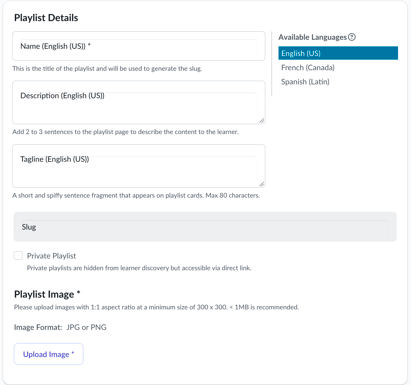
- Name: Enter a title of 25 characters or fewer.
- Description: Enter one or two concise, learner-friendly sentences describing the content.
- Tagline: Enter a short sentence fragment of 80 characters or fewer.
- Private Playlist: Select this option if you do not want the playlist to appear on the learner landing page or in playlist discovery experiences. Learners with a direct link can still access a private playlist.
- Translations: If applicable, add Spanish translations for your custom playlist copy:
- Select the language under Available Languages.
- Enter translated text for the Name, Description, and Tagline.
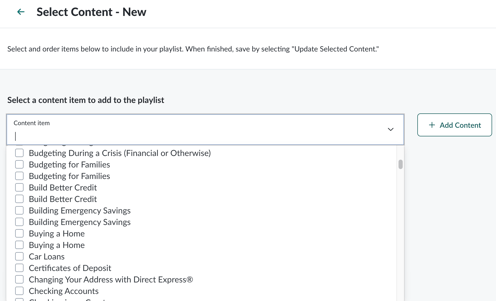
- Add content to your playlist:
- Use the dropdown to select one or more pieces of content.
- Select + Add Content.
- Reorder content using the gripper dots on the left.
- Remove content using the trash can icon.
- Select Update Selected Content to finalize your selections.
- Select your images:
- Playlist Image: Required. This image appears on the playlist card.
- Social Media Image: Used as the preview image when the playlist is shared.
- Select Save, then confirm your changes to finish creating your playlist.
Next Steps
After saving, your custom playlist appears in the Playlists list.
To include the playlist in a program, add it to the program after you save it. For instructions, see Adding A Playlist.
If you created a private playlist, it remains excluded from the learner landing page and standard playlist discovery experiences. Learners with the direct link can still access it.
Troubleshooting
- Missing the Create Playlist option? Your organization's configuration may not include playlist management. Contact Everfi Support for help.
- Having trouble uploading an image? Confirm you're using a JPEG or PNG file.