
Before You Begin
- Confirm you are logged in with Admin permissions.
- Prepare:
- A clear playlist name, description, and tagline.
- High-resolution images (JPEG or PNG) for the playlist card and social media preview. We recommended a resolution of 600×400 px.
- Translations for all supported languages, if applicable.
Steps to Create a Custom Playlist
- Log in to your Admin account
- In the left-hand navigation, go to Content → Playlists → Create Playlist.
- Fill out the Playlist Details:
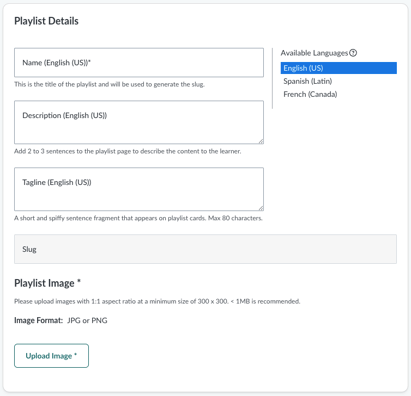
- Name: The title of your playlist.
- Description: 2–3 sentences describing the content for learners. Keep descriptions concise and learner-friendly.
- Tagline: A short sentence that appears on playlist cards.
- Translations:
- Click the language under Available Languages.
- Enter translated text for Name, Description, and Tagline.
- Repeat for all available languages.
- Add Content:
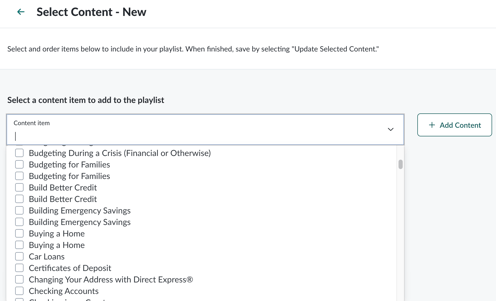
- Use the dropdown to select one or more pieces of content.
- Click + Add Content.
- Reorder content using the gripper dots on the left.
- Remove content using the trash can icon.
- Click Update Selected Content to finalize your changes.
- Select Images:
- Playlist Image (Required): Appears on the playlist card.
- Social Media Image: Used as the preview image when sharing playlist links.
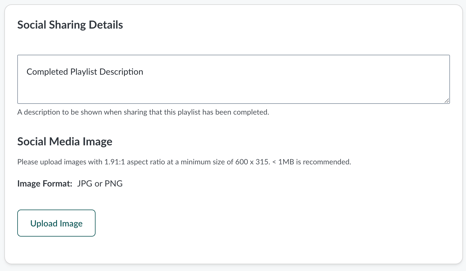
- Click Save, then confirm changes to finish creating your playlist.
Next Steps
- After saving, your playlist appears in the Playlists list.
- To make it available to learners, attach it to a program. To read more about this, click Adding A Playlist.
Troubleshooting
- Missing the Create Playlist option? Contact Everfi Support to enable the feature.
- Content not appearing? Ensure modules are active and not archived.
- Image upload issues? Check file size and format (JPEG or PNG recommended).