
Warning: If the playlist you edit is live on a program, any changes you make will immediately appear for learners across all programs using that playlist.
Steps to Edit a Playlist
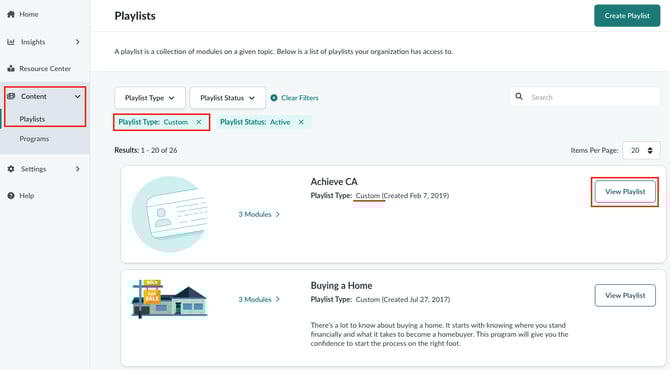
- In the left-hand navigation, click Content → Playlists.
- Find the custom playlist you want to edit and click View Playlist.
- In the top-right corner, click Edit Playlist.
- Make your changes:
- Update text fields (Name, Description, Tagline).
- Add or remove content.
- Reorder content using the gripper dots.
- Update images or translations as needed.
- Click Save.
- Confirm changes. If the playlist is live on a program, updates will appear almost immediately on learner-facing pages.
Note:
- Edits apply globally to all programs using this playlist.
- Learners will see updated content as soon as changes are saved.