
What Is the Enrollments Tab?
The Enrollments tab provides a detailed view of all learners who have registered for a program through invitations sent by your team. It helps you track who has registered, when they last logged in, and what content they’ve engaged with.
This report is especially useful for advisors and admins who want to monitor learner activity and follow up with those who haven’t started content.
How to Access the Enrollments Tab
This report is not located under the general Reports/ Insights section.
To access the Enrollments tab:
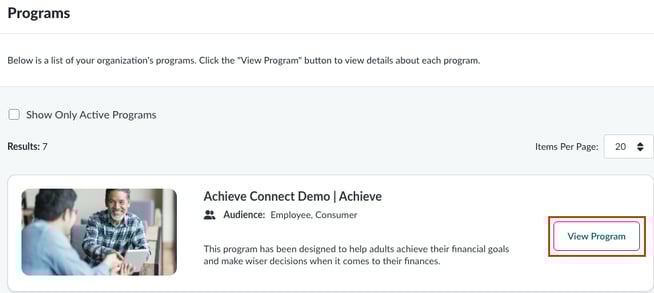
- Navigate to Content > Programs in the left-hand menu.
- Locate the specific program you want to review and click the View Program button.
- At the top of the program page, select the Enrollments tab.
What You’ll See
Each row in the Enrollments table represents a registered learner and includes:
- First and Last Name
- Username
- Registration Date
- Last Login Date
- Content Engaged With (playlists or modules the learner has started)
To see which specific content a learner has accessed:
- Click the View link under the Content Engaged With column.
If a learner has only visited the landing page but hasn’t clicked into any content, the system will display a message indicating that no content has been engaged with yet.
To view more detailed information about a learner:
- Click the View link under the Actions column to open the User Detail page.
Why Use This Report?
The Enrollments tab helps you:
- Track learner registration and login activity
- Identify learners who haven’t started content and may need a reminder
- Understand which modules or playlists are most engaging
- Support follow-up efforts by advisors or admins
- Monitor program performance at the team or organization level
Advisor-Specific Tips
For advisors using Achieve Connect:
- You’ll only see learners who registered through your invitations.
- Use this tab to follow up with learners who haven’t started content.
- Combine this report with the Invitations Sent report to track the full learner journey—from invitation to engagement.
Admin-Specific Tips
For Admins:
- You can view enrollments across all teams or filter by specific advisors.
- This is helpful for identifying high-performing teams or advisors based on learner engagement.
- Use this data to inform incentive campaigns, outreach strategies, or quarterly business reviews (QBRs).
Best Practices
- Use filters to focus on recent activity or specific programs.
- Export the data to CSV for deeper analysis or sharing with stakeholders.
- Pair with the User Report to get a full picture of learner progress and completion.
- Set reminders for advisors to follow up with learners who haven’t started content.