What Does Deactivation Mean?
Deactivating a user in Foundry removes their access to the Everfi platform without permanently deleting their account. This action is reversible and ensures that any data or activity associated with the user (such as reports, invitations, or learner engagement) remains intact and accessible to admins.
- Deactivated users cannot log in or perform any actions.
- Their historical data remains visible in reports and dashboards.
- You can reactivate them at any time if needed.
This is different from deleting a user, which is not recommended for any account that has been used in a live program.
Who Can Deactivate Users?
Only users with Admin permissions in Foundry can deactivate other users. This includes deactivating:
- Advisors / Team Members
- Other Admins
If you do not see the option to deactivate a user, you may not have the appropriate permissions. Contact your Customer Success Manager or another Admin for assistance.
Why You Might Deactivate a User
You may want to deactivate a user if:
- An advisor or admin has left your organization
- A user no longer needs access to the platform
- You want to temporarily restrict access without losing historical data
- You are cleaning up your user list before a new program launch
How to Deactivate a User
- Navigate to the left navigation bar and click Users > Manage Users.
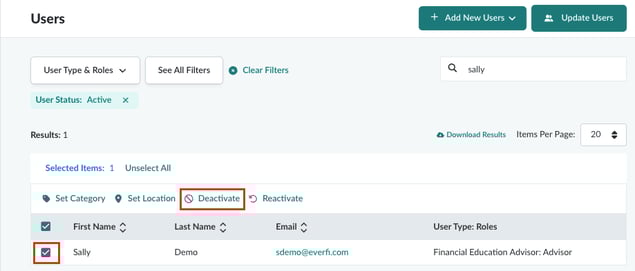
- Use the search bar above the table to find the user you want to deactivate.
- Click the checkbox to the left of the user’s name.
- Click Deactivate above the table.
The user’s status will change to “Deactivated,” and they will no longer be able to log in.
How to Reactivate a User
If you need to restore access for a deactivated user:
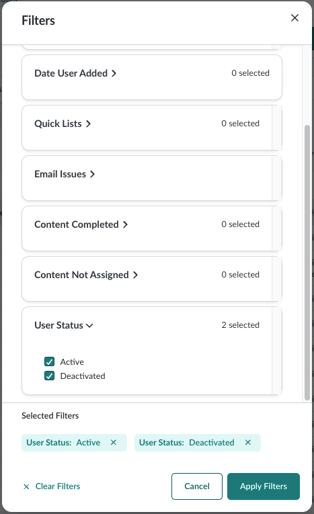
- In Manage Users, toggle the filter to show Deactivated Users.
- Search for the user you want to reactivate.
- Select the checkbox next to their name.
- Click Reactivate above the table.
The user will regain access to the platform immediately.
Additional Notes
- You are not able to delete any user who has participated in a live program. Deactivation is the preferred method for removing access while preserving data.
- Deactivated users are hidden by default in the user list. To view them, click 'See All Filters' at the top of the Users page, and then select 'Deactivated' under the User Status filter. Once you apply that filter, your user list will show Deactivated users.