
This page contains instructions for rotating the Foundry X.509 certificate. You must complete Steps 4, 5, and 6 in order to avoid disrupting single sign-on.
If your identity provider supports adding two signing certificates for a service provider (such as Microsoft ADFS or Shibboleth), follow the variation for that capability. This approach prevents downtime and allows you to update Foundry and your identity provider at different times, giving you flexibility in scheduling.
To check if this is possible, review your identity provider’s service provider settings to see if multiple signing certificates can be added. While the SAML specification allows this, not all identity providers support it. If you’re unsure, follow the standard instructions.
If your identity provider does not support multiple signing certificates, perform Steps 4 and 5 at the same time—or as close together as possible—to minimize downtime.
We strongly recommend testing single sign-on (SSO) and single logout (SLO) after each update in Steps 4, 5, and 6, as described in Step 7.
- Step 1: Save the current Everfi X.509 Certificate file
- Step 2: Identify where the IDP uses Foundry Certificate
- Step 3: Download the new Foundry Certificate
- Step 4: Update IAM System
- Step 5: Update IDP Configuration in Foundry
- Step 6: Remove Old Certificate From Identity Provider
- Step 7: Test the Update
- See this article for answers to frequently asked questions around Single Sign On.
- See this article for answers to frequently asked questions around certificate rotation.
Step 1: Save the current Everfi X.509 Certificate file
Before making changes, keep a copy of the current Foundry SAML X.509 certificate in case you need to roll back.
You may already have this certificate from your initial configuration, or you can download it from your identity provider’s service provider settings. If not, use the link provided on this page.
Step 2: Identify the places where your IDP uses Foundry Certificate
Locate all places in your identity management system where the Foundry certificate is used. This ensures you update every instance.
Foundry uses the same certificate for both signing and encryption, so update it everywhere it appears.
Caution: Only rotate the Foundry certificate. Do not change your organization’s own certificate. Both the identity provider and Foundry have separate certificates.
Question: What if my identity provider doesn’t reference the Foundry certificate?
Answer: Some identity providers don’t use a service provider certificate. If that’s the case, skip to Step 5.
Question: How can I confirm if my identity provider uses the Foundry certificate?
Answer: There’s no guaranteed method. Contact your identity provider vendor for confirmation.
Step 3: Download the new Foundry Certificate
Log in as an admin to Foundry’s customer admin portal and navigate to Settings → Single Sign-on, click View Everfi SAML Metadata, then click Download encryption certificate.
Download the Foundry SAML certificate
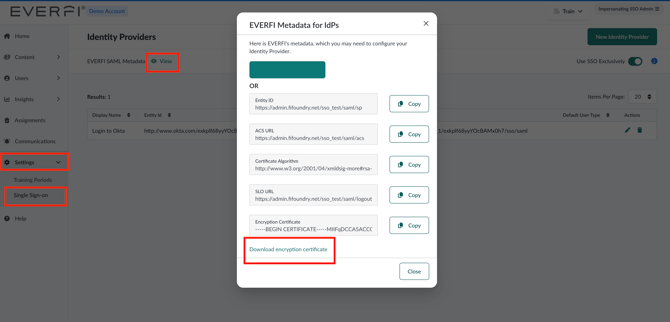
Save the certificate where your identity provider can access it. If your IDP requires encoded text instead of a file, copy the certificate text into a plain text editor for later use.
Important: If your identity provider does not support multiple signing certificates, perform Steps 4 and 5 together to minimize downtime. If it does support multiple certificates, downtime is avoided.
Step 4: Update IAM System
Update your identity access management system’s service provider configuration for Foundry to use the new certificate everywhere it appears (signing and encryption).
If you use SSO exclusively, you may lose access after Step 4. To prevent this:
- Temporarily disable Use SSO Exclusively, or
- Sign in to Foundry before Step 4 and be ready to complete Step 5 immediately.
Variation for IDPs that support multiple signing certificates:
- Add the new Foundry certificate as a second signing certificate without removing the old one.
- If your IDP encrypts SAML messages, replace the encryption certificate with the new one. If not, skip this step.
Step 5: Update IDP Configuration in Foundry
After updating your identity provider, update Foundry to use the new certificate:
- Log in to Foundry’s customer admin portal.
- Go to Settings > Single Sign-on and edit your identity provider.
- Select the new EVERFI SAML Certificate and click Save.
If your IDP supports multiple signing certificates, this step can be delayed—but complete it before the old certificate expires.
Some IDPs may take time to recognize the new certificate due to caching. If needed, allow time between Steps 4 and 5 or restart IDP services.
Caution: Only update the Foundry certificate. Do not change your organization’s own certificate.
Step 6: Remove Old Certificate
In your identity provider, in the service provider entry for Foundry, remove any references to the old certificate while keeping the new certificate. Make sure you remove the correct one.
Step 7: Test the Update
Test SSO from both the identity provider and Foundry (service provider–initiated). If SLO is enabled, test logout from both Foundry and your identity provider.