
What Are Custom Categories and Labels?
Custom Categories and Labels allow you to group users—especially advisors and team members—into meaningful segments for easier management and reporting.
- Category = The broader grouping (e.g., “Department” or “Advisor Type”)
- Label = The specific classification within that category (e.g., “Sales,” “CSA,” “Advisor”)
Each user can belong to multiple categories but can only have one label per category.
Common Use Cases for Financial Institutions
- Segmenting Advisors: Use a category like “Advisor Type” with labels such as “CSA” and “Advisor” to distinguish between Certified Service Advisors and general advisors.
- Organizing by Region or Branch: Create a “Region” or “Branch” category to group users by location.
- Filtering for Reporting: Categories and labels can be used to filter user reports, making it easier to analyze engagement by group.
How to Create a Custom Category
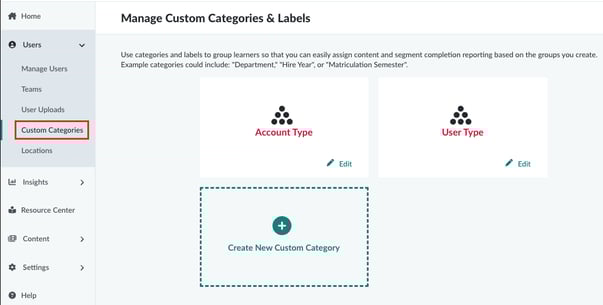
- Go to Users > Custom Categories
- Click Create New Custom Category
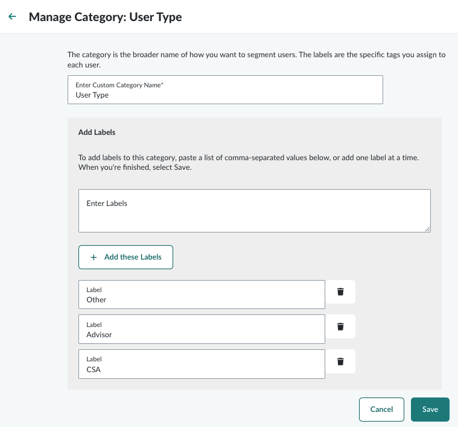
- Enter a name for the category (e.g., “Department” or “Advisor Type”)
- Enter the labels for the category, separated by commas (e.g., “HR, IT, Sales”)
- Click Add These Labels to create individual entries
- Click Save
How to Apply Labels to Users
- Go to Users > Manage Users
- Select the users you want to classify by checking their boxes
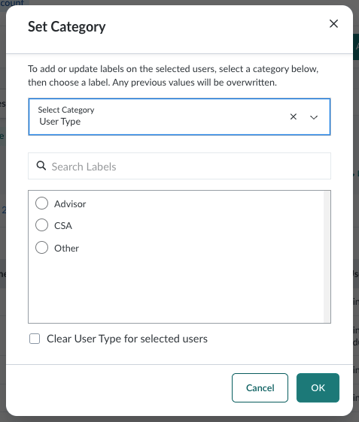
- Click Set Category above the table
- Choose the category and then the label you want to apply
- Click OK to apply the label
You can now filter your user list by category and label.
Advanced Tips
- Bulk Updates: Use the “Upload to Update” feature to apply categories and labels in bulk.
- API Integration: If your organization uses an API integration, categories and labels can be managed automatically through your data sync.
- Audit Existing Labels: Periodically review your categories and labels to ensure they’re still relevant. You can edit or delete labels as needed.
Best Practices
- Keep category names broad and label names specific.
- Avoid overlapping labels across categories to reduce confusion.
- Use consistent naming conventions (e.g., Title Case or all lowercase).
- Plan ahead—if you know you’ll need future labels (e.g., “2026”), add them early.