
Overview
Your program landing page is the central hub of your financial education experience. It’s the first thing your learners see—and it sets the tone for their journey. From this page, customers, employees, partners, and community members can explore a curated library of interactive playlists and modules tailored to their needs and goals.
Everfi works with you to build a customized landing page that reflects your institution’s brand identity and learning objectives. This guide walks you through the setup process and explains each customizable element.
What Is a Landing Page?
A landing page is a branded microsite that serves as a gateway to your program’s content. It includes visual, textual, and interactive elements. Each landing page is built using a layout template, which ensures consistency and accessibility across devices.
Customizable Elements
Your landing page includes seven customizable sections:
-
Navbar with Logo
Displays your institution’s logo and optional navigation links. -
Hero Image
A prominent image that visually anchors the page and reinforces your brand. -
Intro Section
Includes a welcome message or overview of your program. Can be split into left/right subsections for layout flexibility.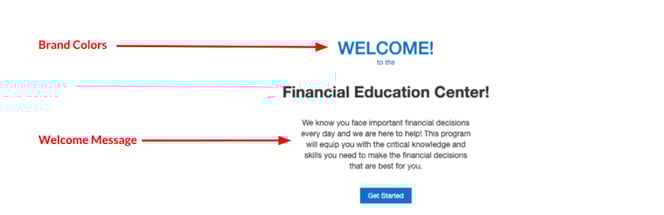
-
Playlist Cards
Automatically populated with your selected playlists. Each card includes a title, tagline, and icon.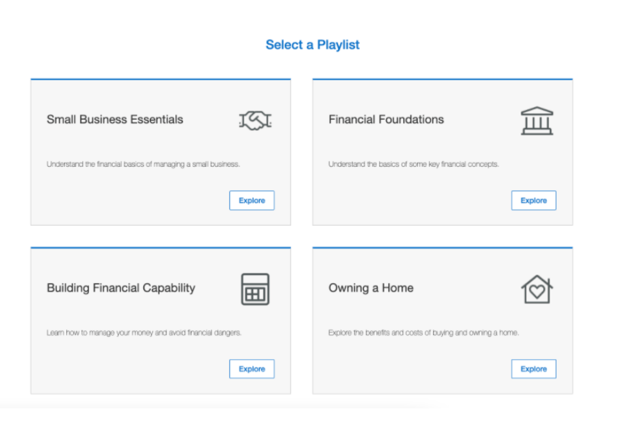
-
Marketing Area (Optional)
An optional content area that you can use to highlight a product, service, or resource and communicate a call-to-action
Title: 10 words or less
Copy: 600 characters or less
Image dimensions: 565×420 px
Aspect ratio: 113:84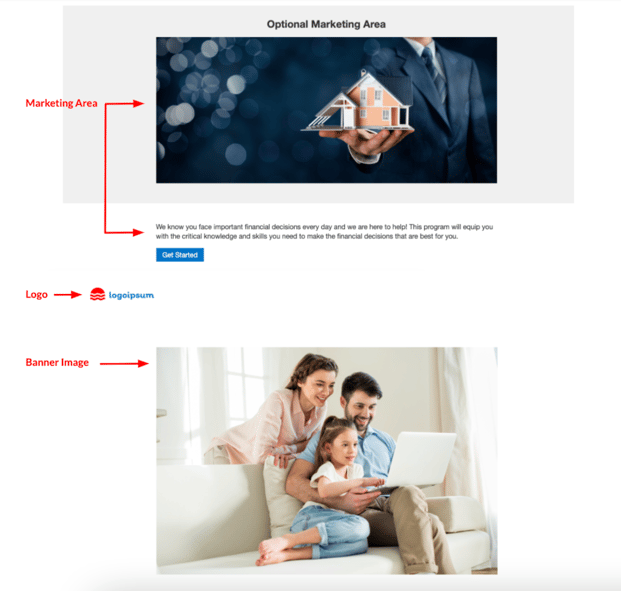
-
Social Sharing Area
Enables learners to share the program via social media. You can customize the preview image and messaging. -
Disclaimer Section
Add legal disclaimers, privacy notices, or other required messaging.
Note: As part of customized development, the team might need to edit, crop, and/or compress provided images that do not fit our guidelines in order to ensure the best end user experience.