
What Happens When You Remove a Playlist
- The playlist will no longer appear in the program.
- All content within that playlist will be removed from the Content Library page for learners.
- Any active incentives tied to that playlist will no longer be available.
- The playlist itself is not deleted or archived—it remains in your Playlists list and can be re-added later.
Steps to Remove a Playlist
- Log in to the Admin Portal.
- In the left-hand navigation, click Content → Programs to open the Programs List page.
- Find the program you want to update and click View Program.
- On the Program Detail tab, click Manage Playlists.
- On the Manage Playlists page:
- Locate the playlist you want to remove.
- Click the trash can icon on the playlist card.
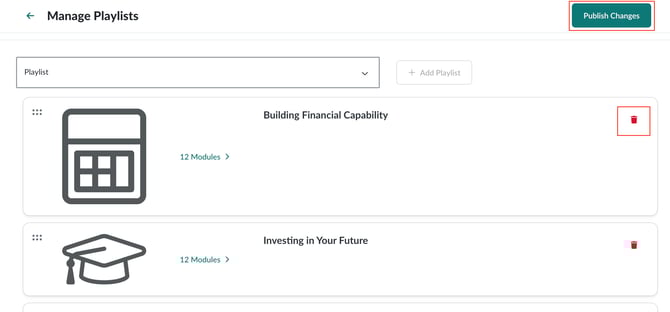 Confirm that you want to remove the playlist.
- Click Publish Changes.
- In the confirmation modal, choose Publish to make your changes live.