
What Happens When You Reorder
- The order you set determines how playlists appear on the program’s landing page for learners.
- Changes apply immediately after publishing.
Steps to Reorder Playlists
- Log in to the Admin Portal.
- In the left-hand navigation, click Content → Programs to open the Programs List page.
- Find the program you want to update and click View Program.
- On the Program Detail tab, click Manage Playlists.
- On the Manage Playlists page:
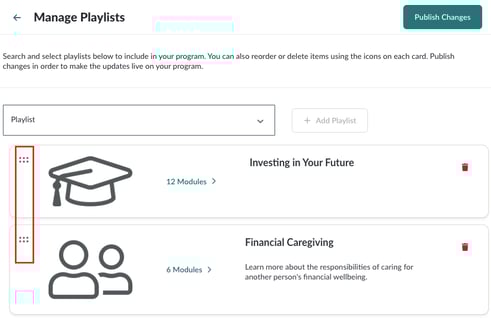
- Locate the playlist cards.
- Click the reorder icon (𓃎) on the left side of the card.
- Drag the card into the desired position.
- Click Publish Changes.
- In the confirmation modal, choose Publish to make your changes live.
Best Practices
- Place the most important or frequently accessed playlists at the top for better learner engagement.
- Review the program landing page after publishing to confirm the order looks correct.
- If you manage multiple programs, keep playlist order consistent for a better user experience.