
Steps to Add a Playlist
- In the left sidebar, click Content → Programs to open the Programs List page.
- Find the program you want to update and click View Program.
- On the Program Detail tab, click Manage Playlists.
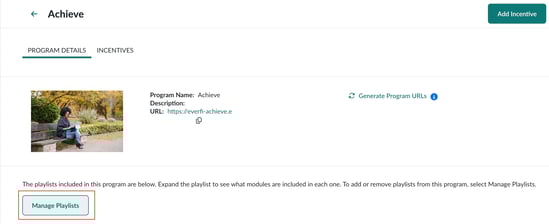
- On the Manage Playlists page:
- Open the Playlist dropdown.
- Select the playlist you want to add.
- Click Add Playlist.
- The playlist appears as a card at the bottom of the list.
- Click Publish Changes.
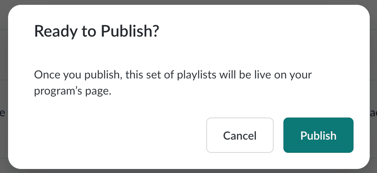
- In the confirmation modal, choose Publish to make your changes live.
What Happens Next
-
- Playlists display as cards at the bottom of the program page.
-
- Once published, the playlist is live on your program's page and visible to learners in the program.
- Once published, the playlist is live on your program's page and visible to learners in the program.
Looking to create a custom playlist? See our article on Creating A Custom Playlist