
What Is a Custom Moment?
A Custom Moment is a branded screen that appears within a learning module in Achieve. It allows your organization to add personalized messaging, visuals, and calls to action directly into the learner experience.
Custom Moments can help you:
- Encourage learners to take a specific next step
- Highlight your services, tools, or resources
- Reinforce your organization's brand and messaging
- Connect learners with relevant products, services, or additional resources
Example: After a module on credit scores, you might include a Custom Moment explaining how your institution supports customers with credit monitoring, along with a link to learn more.
Custom Moments are created and implemented by Everfi using the content, assets, and placement guidance you provide. Work with your Customer Success Manager or Implementation Specialist to get started.
Where Custom Moments Appear
Custom Moments are configured at the program level, so they appear within the specific program where they are set up.
If a module appears in multiple playlists within the same program, its Custom Moment can appear when learners access that module through those playlists. A Custom Moment can also be used across multiple modules when appropriate.
Most modules include three or four predefined integration points where a Custom Moment can be placed. Available locations vary by module and content.
Note: Custom Moment availability and placement options vary by content. Your Everfi team can help you identify the available locations for the content you want to customize.
Common Uses for Custom Moments
Custom Moments can support a variety of goals, including:
- Lead Generation: Encourage learners to visit your website, explore a service, complete a survey, or take another next step.
- Disclaimers: Add relevant compliance or legal language within the learning experience.
- Brand Messaging: Reinforce your organization's mission, values, or key messages.
- Additional Resources: Connect learners with related educational resources, products, or services.
- Next Steps: Guide learners toward an appropriate action after engaging with educational content.
Custom Moment Layouts
You can choose between two primary layouts.
Layout 1: Custom Video
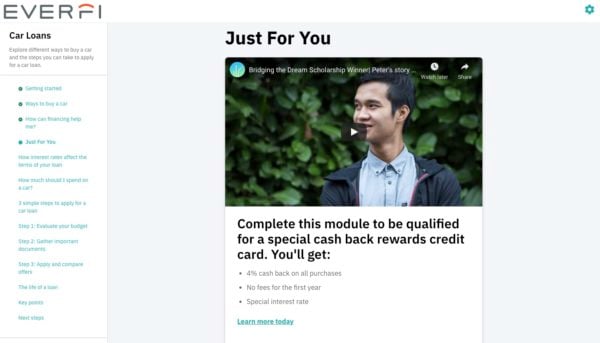
- Include a video up to 2.5 minutes long
- Video must be hosted on YouTube
- Include supporting title, subtitle, body copy, and a call to action
Layout 2: Custom Image

- Include a branded image
- Image dimensions must be 980 × 550 px
- Use a JPG or PNG file
- Image must be under 1 MB
- Include supporting title, subtitle, body copy, and a call to action
What You’ll Need to Provide
Use the following guidelines when preparing content for your Custom Moment.
| Component | Details |
|---|---|
| Layout Selection | Choose the video or image layout |
| Navigation Title | Provide the title that should identify the Custom Moment in the learner experience |
| Primary Header | 45 characters or fewer |
| Secondary Header | Optional, one sentence maximum |
| Visual Asset | Image measuring 980 × 550 px or a YouTube video up to 2.5 minutes |
| Body Copy | Paragraph of up to five sentences or a bulleted list |
| Call to Action | Button of three words or fewer, or a hyperlink of one sentence |
| CTA URL | Provide the destination URL when including a call to action |
| Module Placement | Identify the module or modules where the Custom Moment should appear and your preferred placement |
| Disclaimer | Optional legal or compliance language |
Images should be JPG or PNG files measuring exactly 980 × 550 px and must be under 1 MB.
If your Custom Moment will also be available in Spanish, provide the translated copy with your submission.
By default, CTA links open in a new browser tab.
How to Submit a Custom Moment
- Gather your copy, visual assets, CTA links, and placement preferences.
- Contact your Customer Success Manager or Implementation Specialist to begin your Custom Moment request.
- Provide your content and assets using the template or submission process they share with you.
- Everfi will review your materials and implement the Custom Moment within the selected content.
Your Everfi team can also help you determine which placement options are available for your selected modules.
Track Custom Moment Engagement
You can review Custom Moment engagement within the Elective Learning Activity Summary. Open the report and select Custom Moment Engagement.
Custom Moment reporting includes information such as:
- Total unique visits to Custom Moments
- Conversion rate based on external link clicks and Custom Moment views
- Filtering options to help you review Custom Moment activity across your program and content
Use this data to compare engagement across Custom Moments and identify patterns that can help inform future messaging and campaigns.