
What Is a Custom Moment?
A Custom Moment is a branded screen that appears within a learning module in Achieve. It allows your organization to insert personalized messaging, visuals, and calls to action directly into the learner’s journey.
Custom Moments are designed to:
- Encourage a clear plan of action
- Highlight your services, tools, or resources
- Build trust and brand recognition
- Promote relevant products or next steps
Example: After a module on credit scores, you might include a Custom Moment that explains how your institution helps protect customer credit, with a link to your credit monitoring services.
Where Custom Moments Appear
Custom Moments are placed at the program level, meaning they only appear in the specific program where they’re configured. If a module appears in multiple playlists within the same program, the Custom Moment will show each time that module is viewed.
Most modules support 3–4 placement options, such as:
- Before the first activity
- After a quiz or knowledge check
- Before a tool or calculator
- At the end of the module
Note: Custom Moments are not global—they do not appear across all programs or modules unless specifically configured.
Common Use Cases
- Lead Generation: Encourage learners to schedule a consultation or visit your website.
- Disclaimers: Add compliance messaging or legal language at the start of a module.
- Brand Messaging: Reinforce your institution’s mission or values.
- Next Steps: Guide learners to take action after completing a module.
Layout Options
You can choose from two layout types:
Layout 1: Custom Video
- Embed a short video (max 2.5 minutes) hosted on YouTube
- Includes title, subtitle, body text, and CTA
Layout 2: Custom Image
- Display a branded image (980×550 px, JPG or PNG)
- Includes title, subtitle, body text, and CTA
Layout 1: Custom Video |
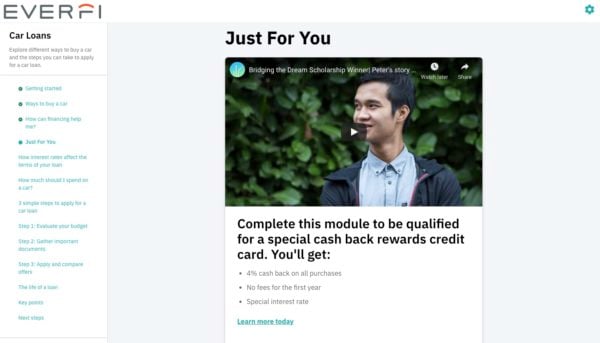
|
Layout 2: Custom Image |

|
What You’ll Need to Submit
To build a Custom Moment, provide the following:
| Component | Details |
|---|---|
| Layout Selection | Choose Layout 1 (Video) or Layout 2 (Image) |
| Primary Header | Max 45 characters |
| Secondary Header | Optional, 1 sentence max |
| Visual Asset | Image (980×550 px, JPG/PNG) or YouTube video link |
| Body Copy | Paragraph (≤5 sentences) or bulleted list (single column of 4 bullets or dual column of 3 bullets) |
| Call-to-Action | Button (≤3 words) or hyperlink (1 sentence) |
| Module Placement | Specify which module(s) and where in the sequence the moment should appear |
| Disclaimers | Optional legal or compliance language |
⚠️ Images must be under 1MB and may be cropped or compressed to fit platform standards.
How to Submit Your Custom Moment
- Gather your content and visual assets.
- Use the Custom Moment Submission Template.
- Send your completed template to your Customer Success Manager or Implementation Specialist.
- Our team will review and place the Custom Moment in your selected module(s).
Tracking Engagement
Achieve includes a Custom Moment Engagement Dashboard that shows:
- Total visits to each Custom Moment
- Conversion rate (external link clicks ÷ total visits)
- Filters by program, content, and activity title
Use this data to evaluate how your messaging is performing and refine future campaigns. To access this dashboard, locate the Elective Learning Activity Summary report and navigate to the Elective Learning Engagement tab.