
Create a private playlist when you want to share a custom collection of content with a specific audience without displaying the playlist to all learners.
Private playlists do not appear on the learner landing page or in playlist discovery experiences. Learners can still access a private playlist through a direct link.
Before You Begin
Before creating a private playlist:
- Confirm you are logged in with Admin permissions and have access to playlist management.
- Keep in mind that only custom playlists can be made private.
- Decide which program you want to associate with the playlist. You must add a private playlist to a program before you can get its full URL to share with learners.
Create a New Private Playlist
- In the left-hand navigation, go to Content > Playlists > Create Playlist.
- Complete the Playlist Details.
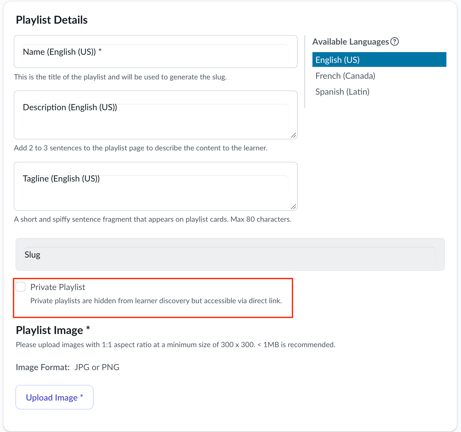
- Select Private Playlist.
- Add your content and images.
- Select Save, then confirm your changes.
For complete instructions on creating and customizing a playlist, see Creating Custom Playlists.
Make an Existing Playlist Private
You can also make an existing custom playlist private.
- Go to Content → Playlists.
- Select the custom playlist you want to update.
- Select Private Playlist.
- Save your changes.
How Private Playlists Work
Making a custom playlist private removes it from the learner landing page and standard playlist discovery experiences.
The Private Playlist setting controls whether learners can discover the playlist. It does not restrict access. Learners who have the direct link can still access the playlist.
Private playlists can be useful for:
- Audience-specific campaigns
- Incentive or promotional programs
- Pilot programs
- Targeted learning initiatives
- Learning experiences intended for a specific audience
Add a Private Playlist to a Program
Before you can get the full URL for a private playlist, you must add the playlist to a program.
- Go to Content > Programs.
- Find the program you want to update and select View Program.
- On the Program Details tab, select Manage Playlists.
- Open the Playlist dropdown and select your private playlist.
- Select Add Playlist.
- Select Publish Changes.
- Select Publish to confirm your changes.
For more information, see Adding a Playlist.
Share a Private Playlist
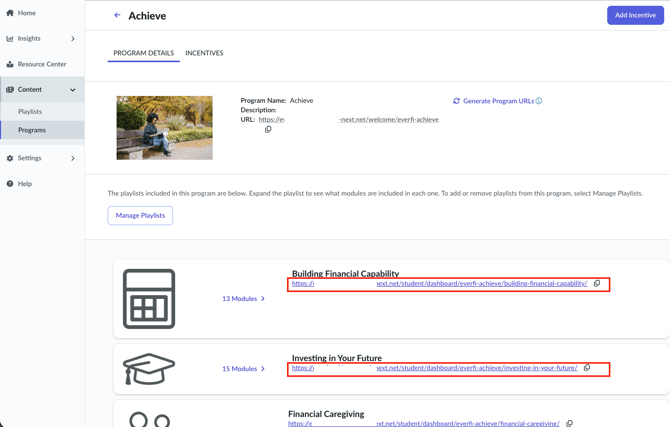
After you add the private playlist to a program, you can copy its individual playlist URL and share it with your intended audience.
- Go to Content > Programs.
- Find the program that contains the private playlist and select View Program.
- On the Program Details tab, find the private playlist.
- Select the copy icon next to the individual playlist URL.
- Share the copied URL with your intended audience.
Be sure to copy the URL displayed with the individual playlist rather than the program URL displayed at the top of the page.
Note: Making a playlist private controls whether learners can discover it. It does not restrict access. Anyone with the direct playlist link can access the playlist.