
Editing a user profile is recommended when you need to update specific details for a small number of users. This includes changes to User Details, Location, Custom Categories, Custom Labels, or Role.
Steps to Edit a User
-
Go to: Users > Manage Users from the left-hand navigation menu.
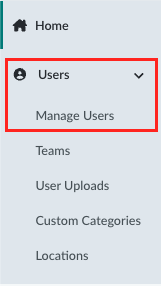
-
Search for the User: Use the search bar to locate the individual user. Click on their name to open their User Profile.
-
Click Edit: Under the user’s name, click Edit and choose the section you want to update.
-
Edit User:
Update user type, capabilities, roles, and personal details such as name, email, location, ID, and SSO ID. -
Manage Labels:
Add, remove, or change custom labels used to classify the user.
-
-
Save Changes: After making your edits, click Save to apply the updates.
Important Notes
-
Permissions Matter:
You can only assign roles and user types that fall within your own permission level. For example, restricted admins cannot view or edit learner data. -
Labels Must Exist First:
Custom categories or labels must be created before they can be assigned to a user. -
SSO Considerations:
If your organization uses Single Sign-On (SSO), ensure the user’s SSO ID is correctly entered. This links their external login credentials to their Everfi account. -
Temporary Passwords:
Admins can generate temporary passwords for users from the User Details page if login support is needed.