
The Full Dashboard view is designed for admins who want to go beyond the basics and explore every metric, filter, and analysis tool available. Whether you’re benchmarking performance, optimizing content, or refining your outreach, this dashboard gives you the clarity and control you need.
What You’ll Find in This Article
- Definitions for every dashboard metric
- How to use filters and parameters for targeted analysis
- Step-by-step guidance for interpreting traffic data and UTM values
- Best practices and examples for making the most of your insights
- Navigation tips for exploring related features
Dashboard Metrics: What They Mean and Why They Matter
- Average Conversion Rate: Percentage of users who clicked external links in Custom Moments, helping you measure the effectiveness of calls to action.
- Activity Opens: Each time a user loads an activity in their browser. Multiple opens within a 48-hour window are counted individually, giving you a sense of repeat engagement.
- Average Page Views Per Start: The average number of distinct page views per activity start, useful for understanding how deeply users explore your content.
- Average Time in Playlist/Program: The average duration between the first and last event timestamps, showing how long users spend learning.
- Conversion % by Activity: Ratio of external link clicks to page visits for each activity, highlighting which content drives the most action.
- Incentives Completed/Qualifications: Track users who completed incentivized playlists or qualified for incentives, so you can measure the impact of rewards.
- Program Engagement: Unique page visits by program, content, and activity, helping you spot trends and popular topics.
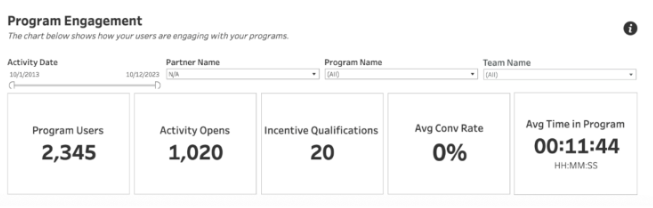
- Program Users: Total users who have visited your program, including registered, guest, and non-engaged users.
Using Filters and Parameters
- Date Range: Focus your analysis on specific time periods to spot trends or measure campaign impact.
- Program/Activity: Drill down into individual programs, playlists, or modules for targeted insights.
- Metric Select: Use the drop-down menu to choose which metric to analyze. The Metric Info icon provides detailed descriptions for each option.
- Full-Screen View, Clear Filters, Refresh Data: These tools help you customize your dashboard experience and keep your analysis up to date.
Traffic Analysis: Attributes and UTM Values
Understanding how users find and access your content is key to optimizing your outreach and marketing efforts. The Traffic Analysis section lets you slice your data by:
| Attribute | Description |
|---|---|
| Campaign | UTM Campaign—track specific marketing campaigns |
| Term | UTM Term—identify paid search keywords |
| Source | UTM Source—see which advertiser, site, or publication sent traffic |
| Medium | UTM Medium—track the advertising or marketing medium (e.g., email, banner) |
| Browser | Client browser used to access Everfi (e.g., Chrome, Firefox) |
| Landing Page | Initial URL of visit |
| OS | Operating system of the user (e.g., Mac OS X, Windows 10) |
| Referral Source | Full path of the URL prior to visit |
| Referring Domain | Domain prior to visit (e.g., everfi.com) |
UTM Parameters allow you to collect marketing campaign information from URLs used in your ads.
Example:
If you use this URL:https://www.example.com/?utm_source=summer-mailer&utm_medium=email&utm_campaign=summer-sale
You will see “summer-mailer” in the Traffic Analysis chart when you select “Source” from “Select Attribute”.
UTM Values Explained:
- utm_source: Identifies the advertiser, site, publication, etc. sending traffic.
- utm_medium: The advertising or marketing medium (e.g., cpc, banner, email newsletter).
- utm_campaign: The individual campaign name, slogan, or promo code.
- utm_term: Identifies paid search keywords.
- utm_content: Differentiates similar content or links within the same ad.
Best Practices for Interpreting Your Data
- Benchmark and Compare: Use date filters to compare engagement before and after campaigns or content updates.
- Segment for Insights: Drill down by program, playlist, or activity to see which areas are thriving and which need attention.
- Monitor Conversion Rates: High conversion rates signal effective content and calls to action; low rates may indicate areas for improvement.
- Track Incentive Completion: Use incentive metrics to measure the impact of rewards and campaigns on learner participation.
- Analyze Traffic Sources: Review UTM parameters and referral data to understand which marketing channels are driving the most engagement.
- Export and Share: Use export features to share insights with your team and stakeholders, supporting data-driven decisions and continuous improvement.
Example:
- Use UTM tracking to see which email campaigns drive the most traffic to your program.
- Identify top playlists and modules to inform future content development.
- Monitor incentive completion rates to adjust rewards and messaging.
Navigation Tips
- Start with the Top Sheet for a quick overview. More at: Elective Learning Summary: Topsheet.
- Use the Full Dashboard for advanced analysis and deeper insights.
- Refer to the Elective Learning Activity Summary Overview article for context and links to related resources.
The Full Dashboard view is designed to empower you with actionable data. Use it regularly to refine your programs, optimize your outreach, and demonstrate the value of your learning initiatives.